 Does Facebook give less importance to posts made by third party apps such as HootSuite or RSS Graffiti? Who really knows, but now you no longer need to worry about that. Facebook has added a great new feature that allows you to schedule posts in advance to your Facebook page. The best thing is that you do it right from your Page’s Timeline and it only takes a few seconds.
You can prepare a post and schedule it to appear later by adding a date and time in the future before you post it. You can schedule a post up to 6 months in advance in 15-minute (updated to 10-minute) intervals.
If you choose a date in the past, the post will appear immediately at the appropriate place on your Page’s timeline. All times correspond to the current time zone you’re in. Facebook
How to Schedule Facebook Posts in Advance
 Compose your post. Click the clock icon in the lower left corner to open the time schedule area.
Note: You can only access the scheduler when you are posting to Facebook as your page.
 Select the year, month, day, hour and minute. Time reflects your current time zone.
Note: Posts are scheduled in 10-minute increments and you must schedule an update at least 10 minutes in advance.
 Click the Schedule button.
Tip: Check your post text before you click Schedule as the post’s text is not editable after scheduling.
 The pop-up lets you know your post has been scheduled and a link to the Activity Log where you can view and edit your post.
Tip: You can access the Activity Log from your Admin Panel under the Manage button.
 To edit your post hover over the upper right corner of your scheduled post and click the arrow that appears to access the edit menu. Select from change time, publish now or delete post options.
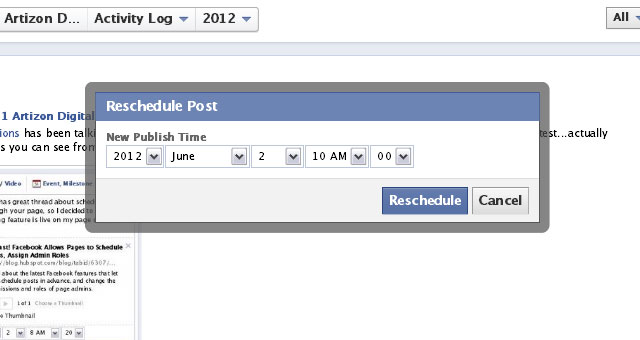 Selecting Change Time brings up the Reschedule Post pop-up and click the Reschedule button to set the new publish time .
Facebook new features are rarely perfect, and Matt Petronzio in his Mashable article did point out a few flaws. I will have to agree with his point that the feature is difficult to find and most of us didn’t even know we had it. But now that you are in the know as to how to create a scheduled Facebook post time, you can easily schedule your Facebook business page posts in advance.
Sue Surdam | Artizon Digital | WordPress Specialist and Social Media Solutions | 503-577-1035
I just tried doing a test post for this and it only lets me schedule in the past. Has something changed or am I doing it wrong?
It also only gives me the option to schedule on a date, not a time. Help!
Just did a test post at the Social Media 101 FB page and everything went smoothly. I am not sure what is happening with your page, but I would be wiling to look at your problem via phone and “join me”. Perhaps together, we can figure it out.
Reply
Same issue with me. have used the scheduler since facebook made it available to admins, but for the last few days it has only presented dropdowns for year, month, day — none for time.
I have the same problem. Gives me the year/the month/the day but not the time. Have can we solve this problem?
I am not sure why this is happening, but glitches are not uncommon with the scheduler. The best thing to do is report it to Facebook so they are aware of the problem and can fix it.
Pages Bugs and Know Issues Facebook Help Center You will want to select the “tell us more link” in the blue box to report the issue.
I have been thinking about your problem and it occurred to me that you might be trying to do this on your personal profile not a page. Scheduling a post in advance only is an option for pages.
Can one cancel a scheduled post easily (if you change your mind or the information changes, etc.)?
thanks.
You can cancel a post very easily. Just access the post via the activity log (see slides 4-6) to cancel it.